You can manage individual Patient Portal accounts from the Address Book.
- From the Inbox, select
 .
. - Search for and select the patient.
- Select the Patient Portal tab.
 .
.
- Do one of the following tasks:
- Print Card: If the patient doesn't have an email address, you can print a login card to provide to the patient. The card contains all the login information that the patient needs to access the Patient Portal. When you select Print Card, the computer's default printer options appear.
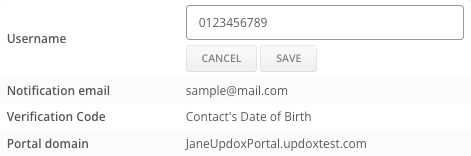
- Edit Username: Use this option if a patient forgets their Patient Portal username. Select Edit Username, change the username, and then select Save.
- Reset Password: If the patient has an email address in patient demographics, selecting Reset Password generates an email with a temporary password. The temporary password also appears in the Address Book; however, once the Address Book is closed, the temporary password no longer shows.
-
Opt Out: If the patient requests that you stop sending messages and health care records to the Patient Portal, select Opt Out to prevent users from sending these to the patient's portal.
Patients can generate a password reset from the Patient Portal login page by using the Forgot Password link. Refer to Patient Portal Account Access Recovery.
The patient can change their status back to Opt In when they log in to their portal account. To do so, the patient selects the Send protected health information to my patient portal checkbox in the My Profile section of the Account tab on the Patient Portal.